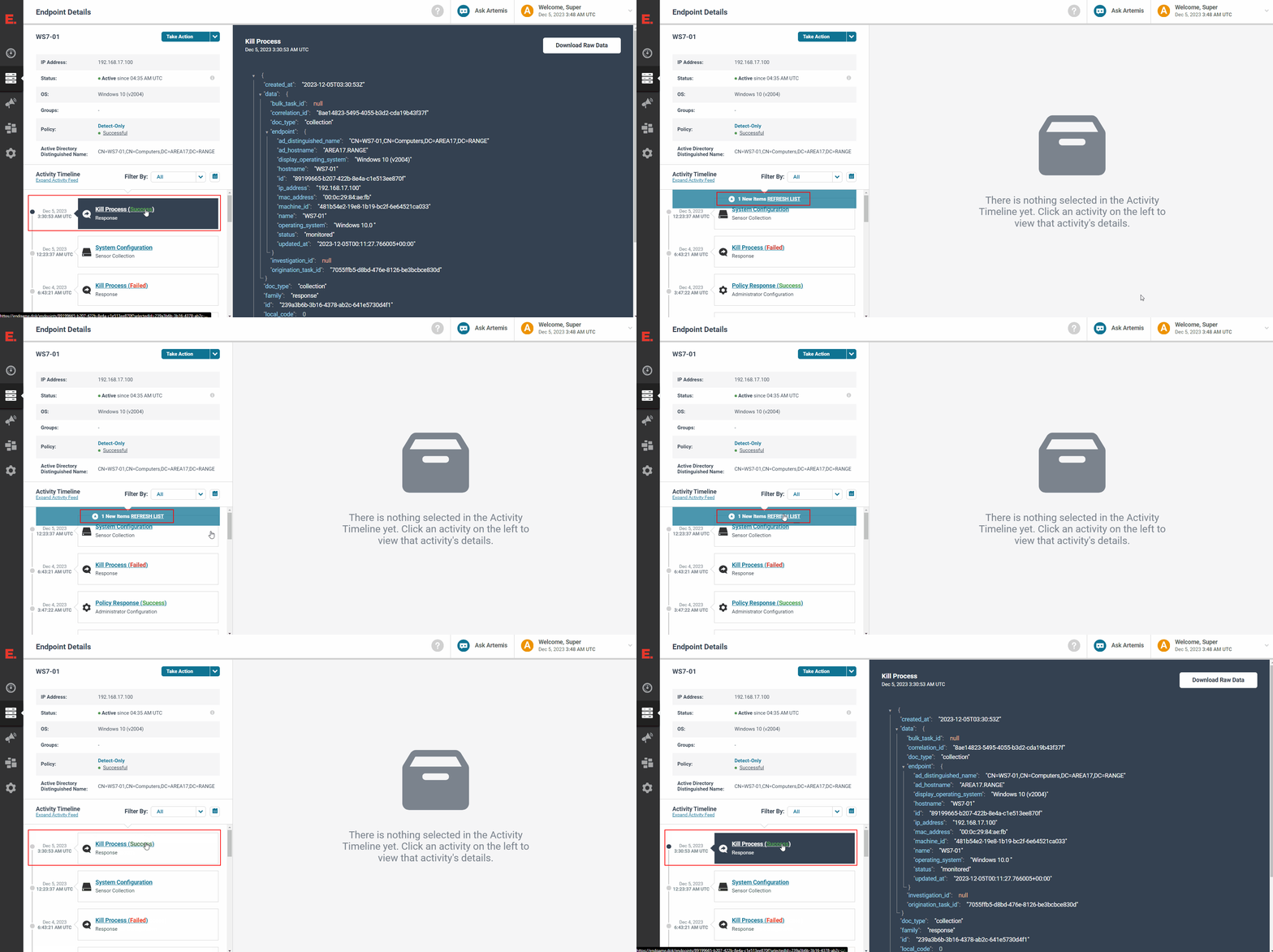
TARGET: Process
| Requirements | Limitations | Considerations |
|---|---|---|
Endgame installed on the target host | Only one host can be targeted at a time | |
The hostname of the target host | ||
Any one of the following details about the target process: Process Id, Process Name, File Path |
TACTIC: Terminate Process
The procedures for killing a process in response to an Endgame alert is slightly different than targeting a process that is not directly associated with an alert.
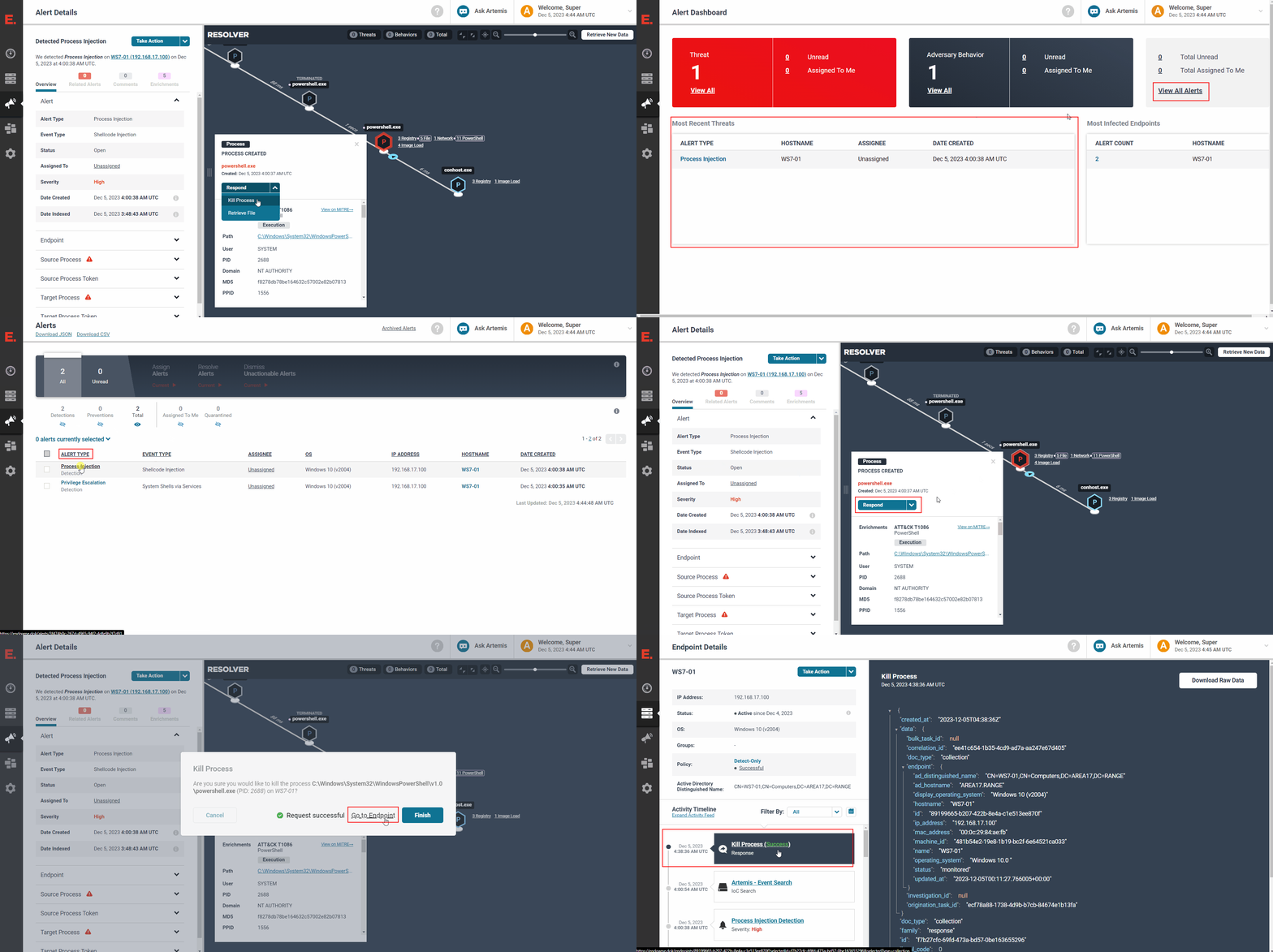
- From the Endgame web UI, navigate to the
Alertstab on the left-hand pane - Find the alert of interest and click on the respective
ALERT TYPEentry to get to theAlert Detailspage - Click on the suspicious process icon outlined red in the
RESOLVERwindow to open the process details card - Click on
Response->Kill Process - When prompted, confirm the target process details and click
Yesto kill the process - Click on
Go to Endpointto go to theEndpoint Detailspage - Verify that the newest
Kill Processresponse entry under theActivity TimelinesaysKill Process (Success)
NOTE: If the entry says
Kill Process (, click on the entry to expand the log message to investigate why the response failedFailed)
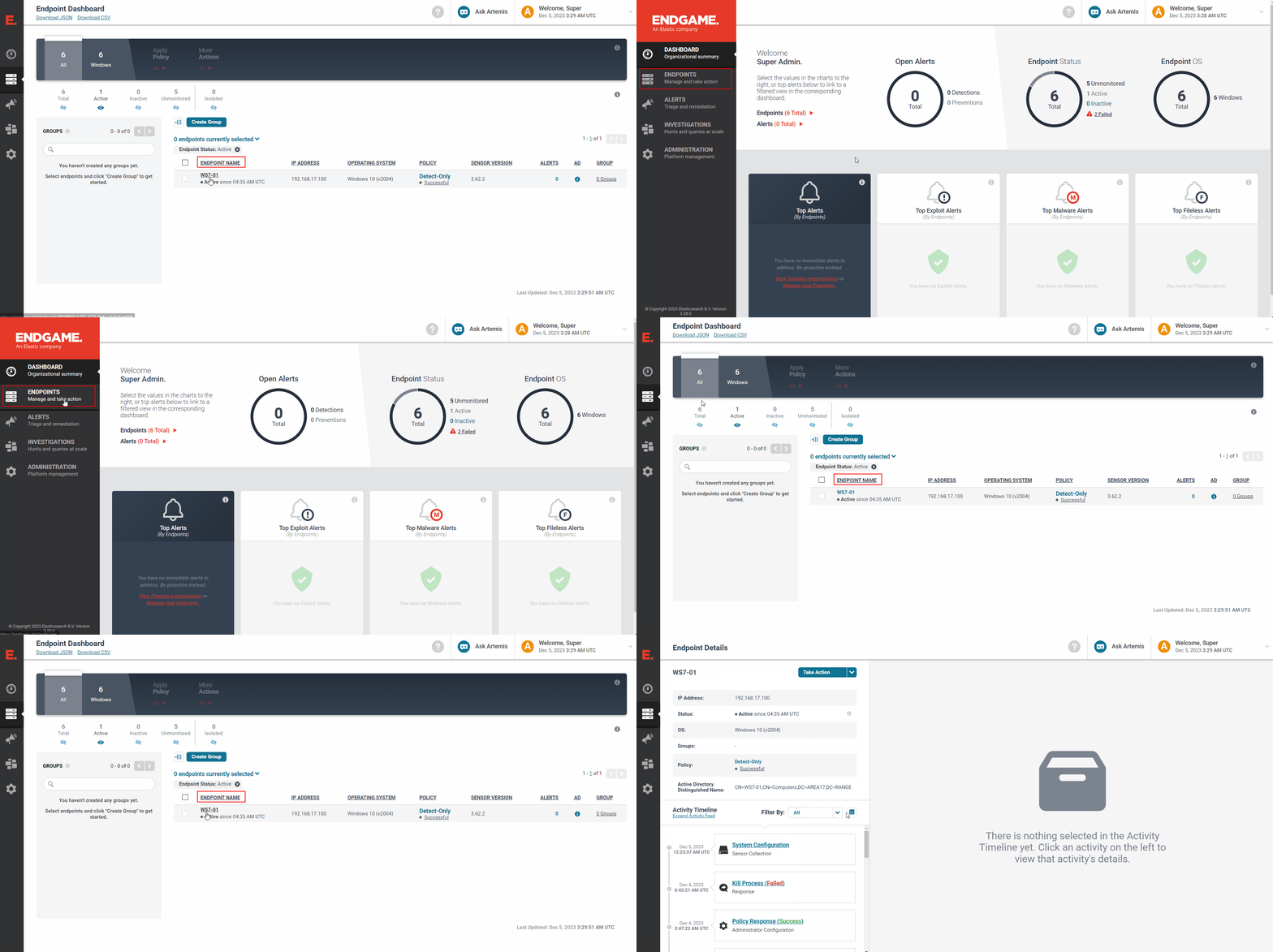
1 - Target the host
-
From the Endgame web UI, navigate to the
Endpointstab on the left-hand pane -
Find the hostname of interest and click on the respective
ENDPOINT NAMEto get to theEndpoint Detailspage
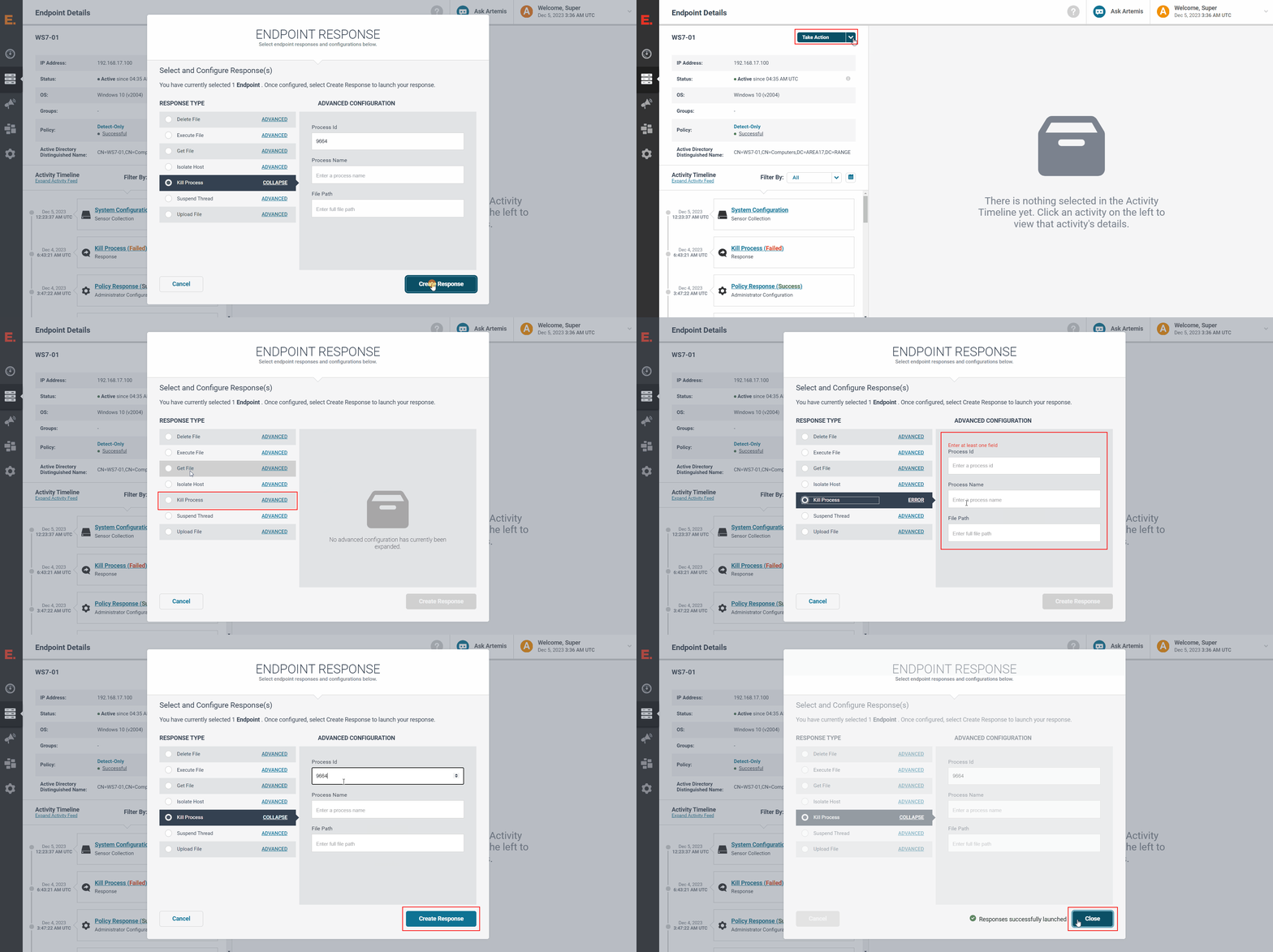
2 - Target and kill the process
-
Click on
Take Action->Respond -
Click on the
Kill Processradio button and fill one the following fields:Process Id(Only kills the specific process with this ID)Process Name(Kills all processes with this name)File Path(Kills all processes running from this executable)
-
Click on
Create Response -
Verify that the
Responses successfully launchedmessage appears and clickClose
3 - Verify the response results
-
Wait for the
Activity Timelineunder theEndpoint Detailson the left-hand pane to update with aREFRESH LISTnotification -
Click on the
REFRESH LISTnotification -
Verify that the newest
Kill Processresponse entry under theActivity TimelinesaysKill Process (Success)
NOTE: If the entry says
Kill Process (, click on the entry to expand the log message to investigate why the response failedFailed)